How to Run Local AI with LM Studio (Windows Beginner Guide)
Learn how to install LM Studio, download your first model, chat offline, and run an OpenAI-compatible local API server on Windows.
If you want AI that runs on your own PC, LM Studio is one of the easiest ways to start. You can download models and chat directly inside the LM Studio interface with no coding required.
This tutorial is built for beginners on Windows and uses real screenshots from setup flow.
What you will have at the end:
- A local model running in LM Studio
- A working offline chat workflow in the LM Studio chat UI
- Optional: a local API endpoint at
http://localhost:1234/v1for advanced users - A practical list of high-intent SEO keywords around local AI
Last updated: April 2026

Highest-value keyword targets for this topic
Based on current search intent patterns around local AI tools, these are the strongest primary and long-tail phrases to target in this article:
- Primary:
LM Studio tutorial,run AI locally,local LLM,LM Studio Windows - High-intent long-tail:
how to run AI locally on PC,LM Studio local server setup,OpenAI compatible local API,offline AI assistant on Windows - Comparison/supporting intent:
LM Studio vs Ollama,best models for LM Studio,private AI on your computer
These terms map to users who are actively trying to install and use local AI now, not just browsing theory.
Step 1 - Install LM Studio
Download LM Studio from the official website: lmstudio.ai.
Install it like a normal desktop app on Windows and launch it.
Step 2 - Open the model browser and choose a model
Go to the model discovery/download area and search for a beginner-friendly model. Good starting options are usually compact instruct models that run well on consumer hardware.
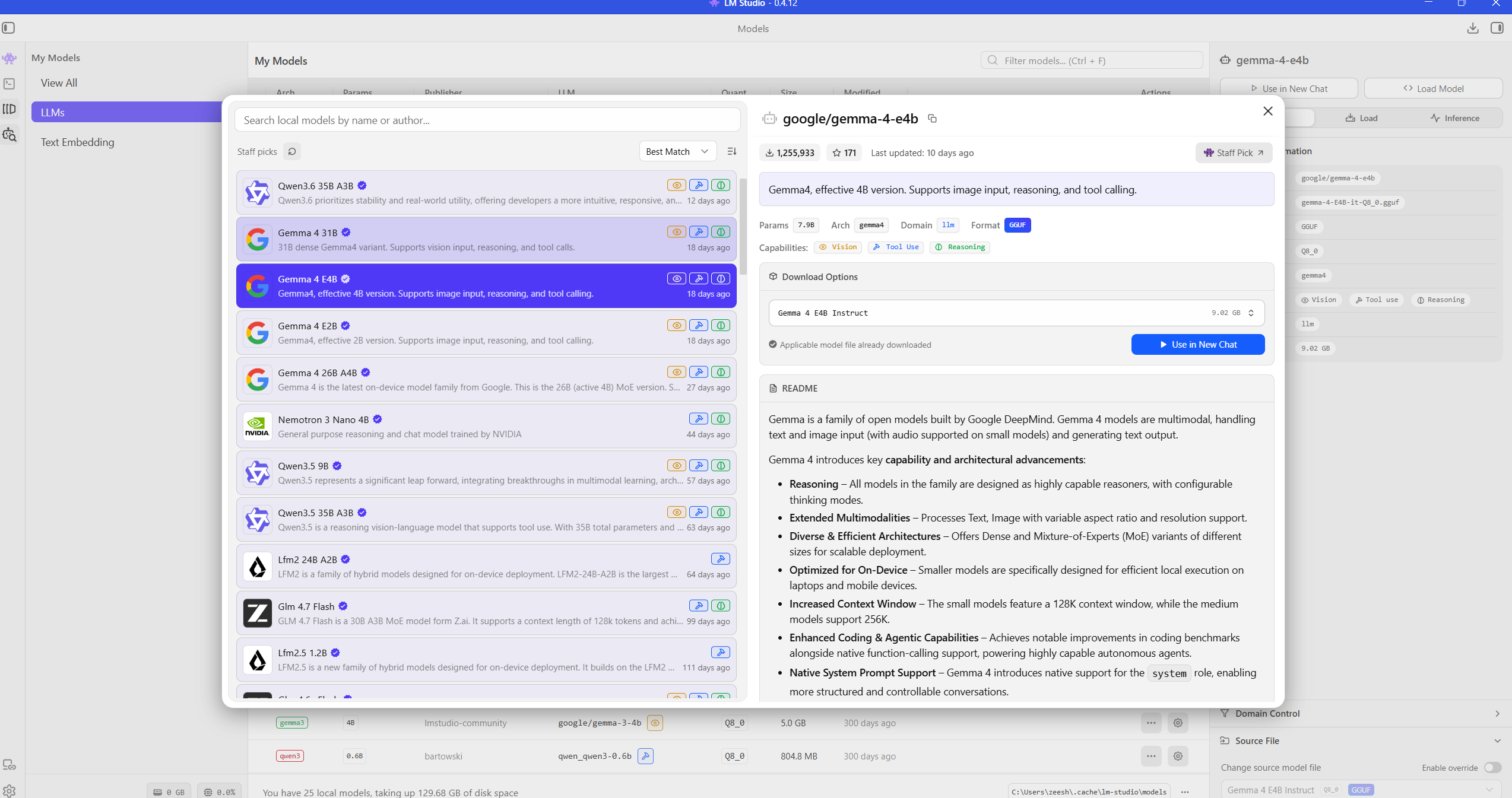
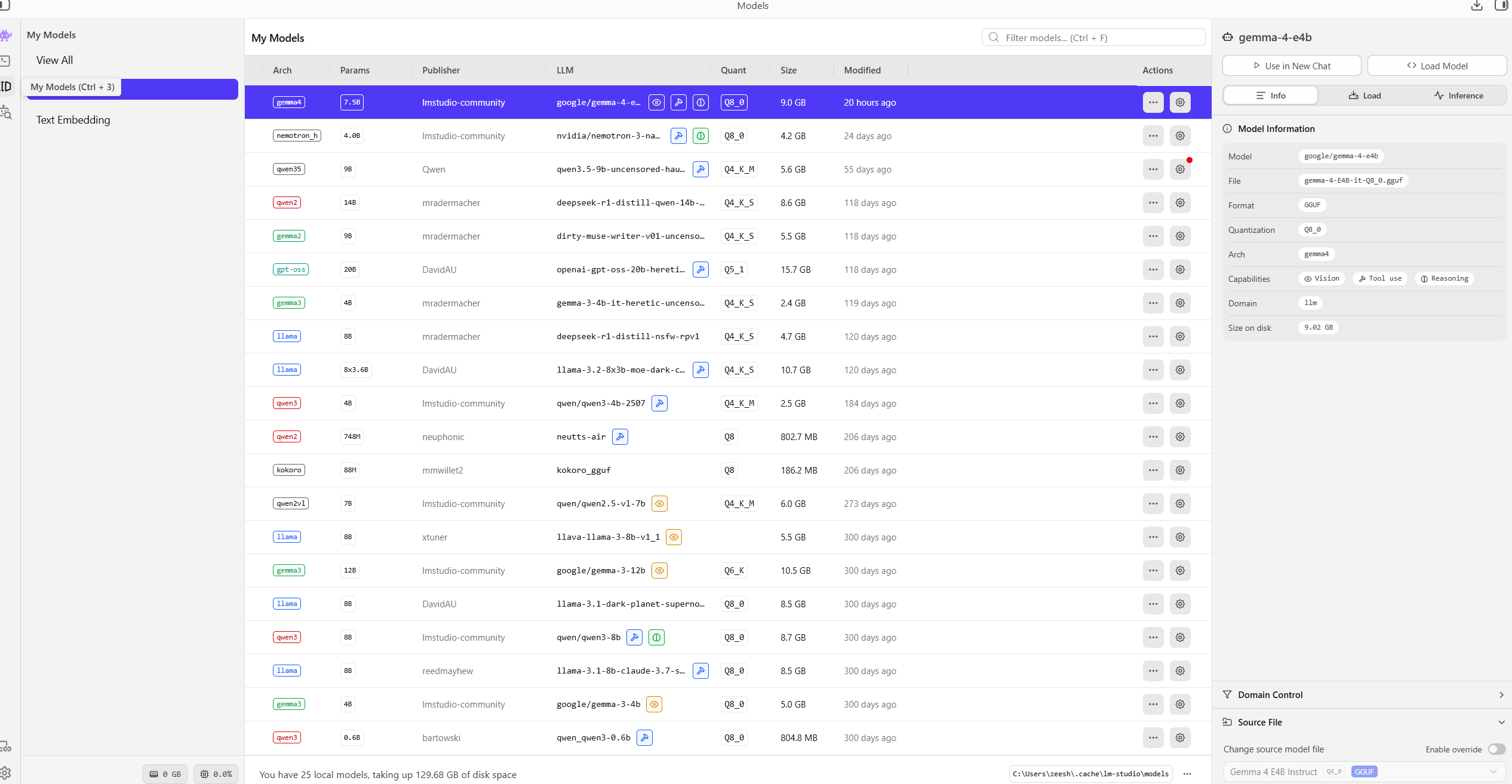
Step 3 - Check downloaded models in your library
After download finishes, confirm your model appears in your local model list.
Step 4 - Start chatting locally
Load the model and start prompting in the LM Studio chat interface. For most people, this is the main workflow: open LM Studio, pick model, and chat.
Your prompts and responses are generated on your machine once the model is local.
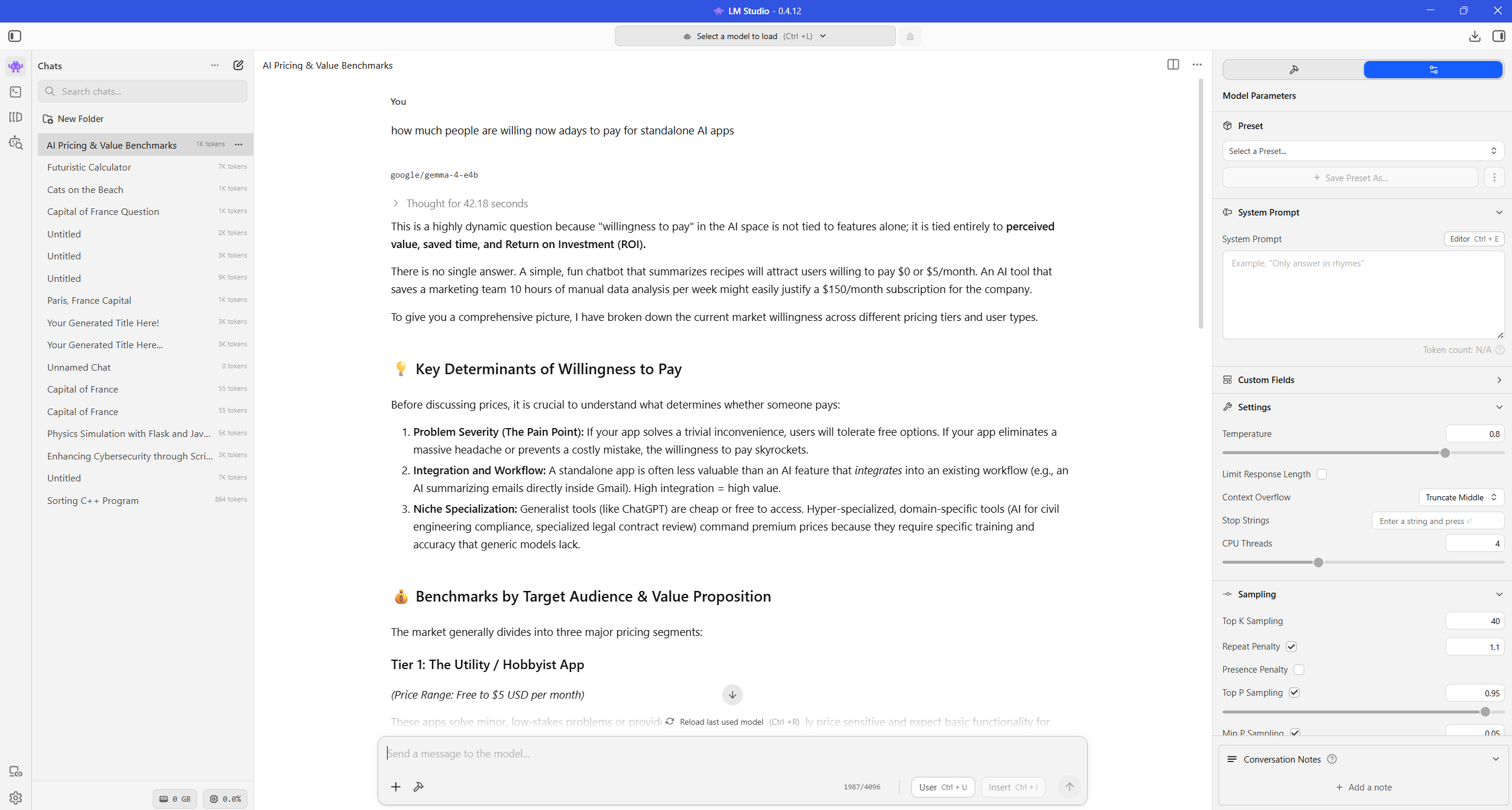
LM Studio's official offline documentation confirms core chat and local server use cases can run without internet after model download: Offline operation docs.
Step 5 - Optional for advanced users: local server mode (OpenAI-compatible)
If you want to use local AI with scripts, coding tools, or automations, you can enable the local server. Most beginners can skip this until later.
- Open Local Server in LM Studio.
- Load a model.
- Start server.
- Use endpoint:
http://localhost:1234/v1
This gives you an OpenAI-style API shape while keeping inference local, but it is mainly useful for advanced workflows and integrations.
Practical performance tips
- Start with smaller models first for smoother response speed.
- If responses are slow, reduce model size before changing advanced settings.
- Keep enough free RAM/VRAM; model size is the main bottleneck.
- Use cloud models only when needed, and keep sensitive work local.
Troubleshooting
LM Studio feels slow
Try a smaller model and close heavy background apps. Local AI speed mostly depends on your hardware and model size.
Download works, but chat fails
Re-load the model and restart LM Studio once. Also confirm the model is fully downloaded, not partial.
API clients cannot connect
Confirm server is running in LM Studio and your client base URL is exactly:
http://localhost:1234/v1
Frequently asked questions
Is LM Studio free?
LM Studio is free for home and work use according to the official site terms and app messaging.
Does LM Studio work offline?
Yes, after you already downloaded a model. Chatting and local inference can run offline.
Is LM Studio good for beginners?
Yes. It is one of the most beginner-friendly GUI options for local LLMs on Windows.
Final thoughts
Local AI is no longer just for advanced developers. With LM Studio, you can get a private, offline-capable assistant running in one setup session and expand into local API workflows as you grow.
Explore more practical guides in Articles and productivity tools in Tools.